Creating and Adding Files to the Directory
By following the steps described above, the file will be transferred. To create a directory in Horus DS, click on "+Add" in the Content Manager tab. This feature allows you to store the transferred file in a specific location, making it easier to organize and subsequently add files to the Slides, which will be inside the directory.
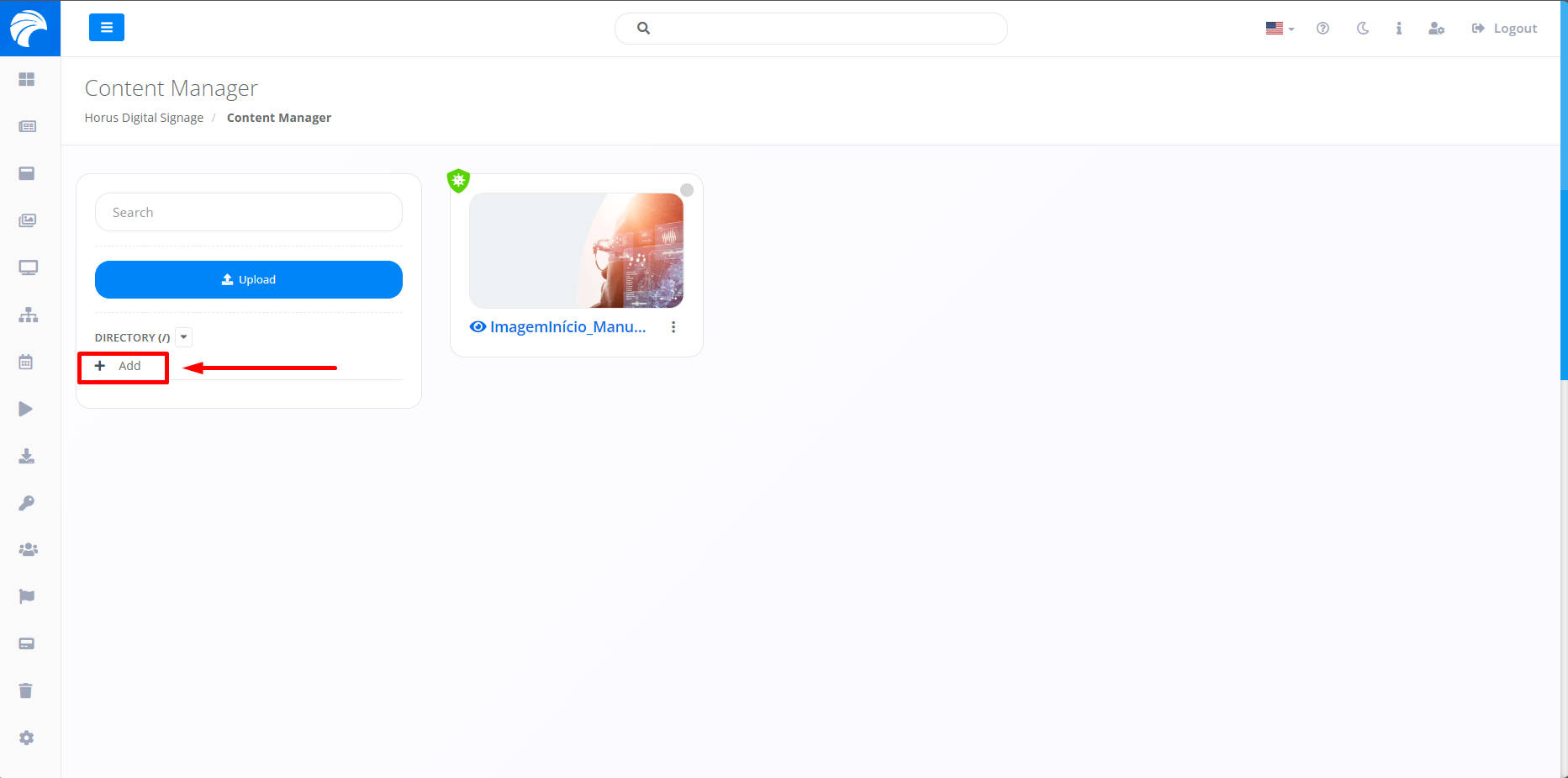
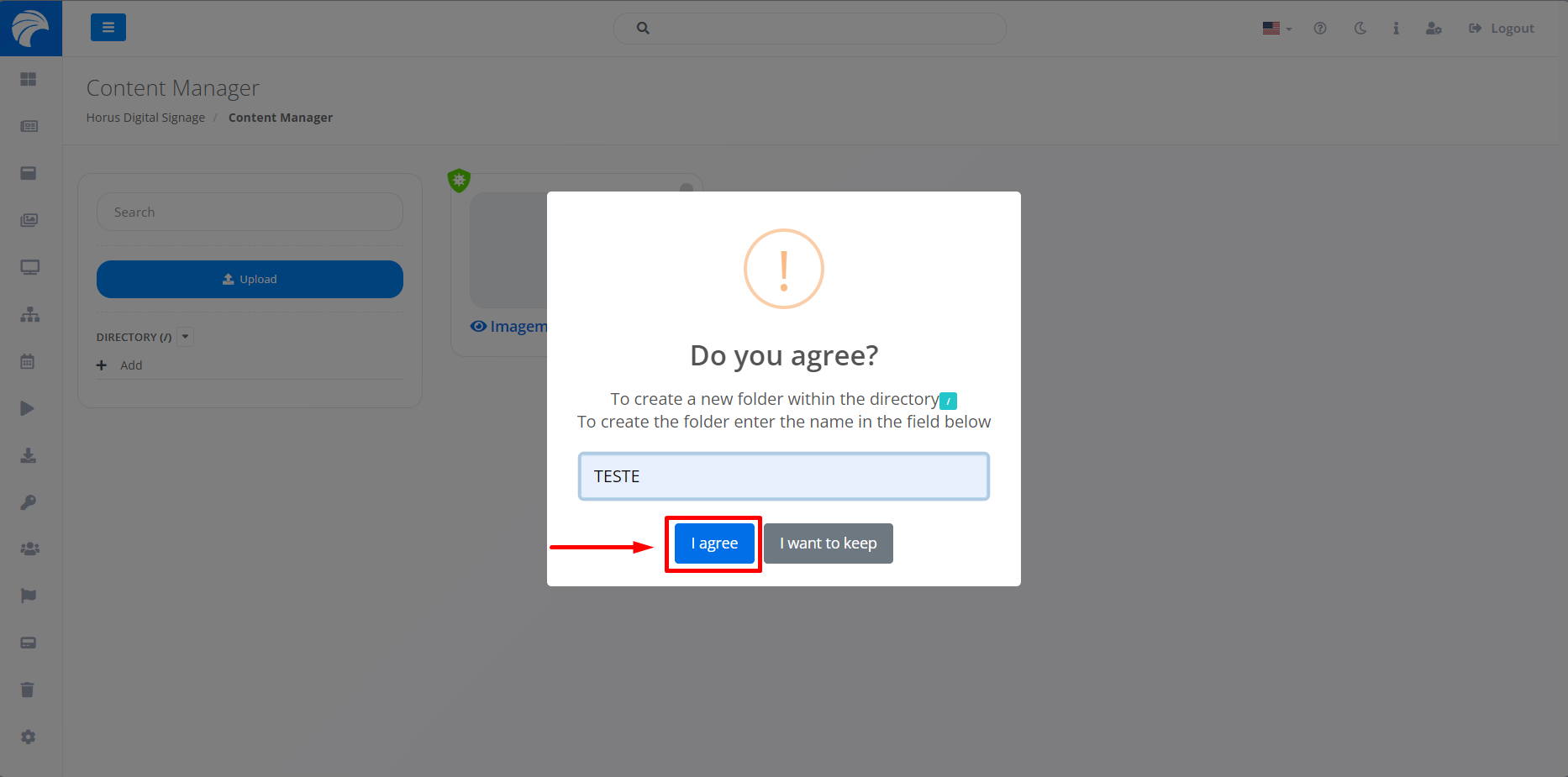
After clicking on +Add, marked in the image above, a pop-up will appear asking you to enter a name for the directory so that it can be created. Once you have entered a name, click "Agree" to confirm.
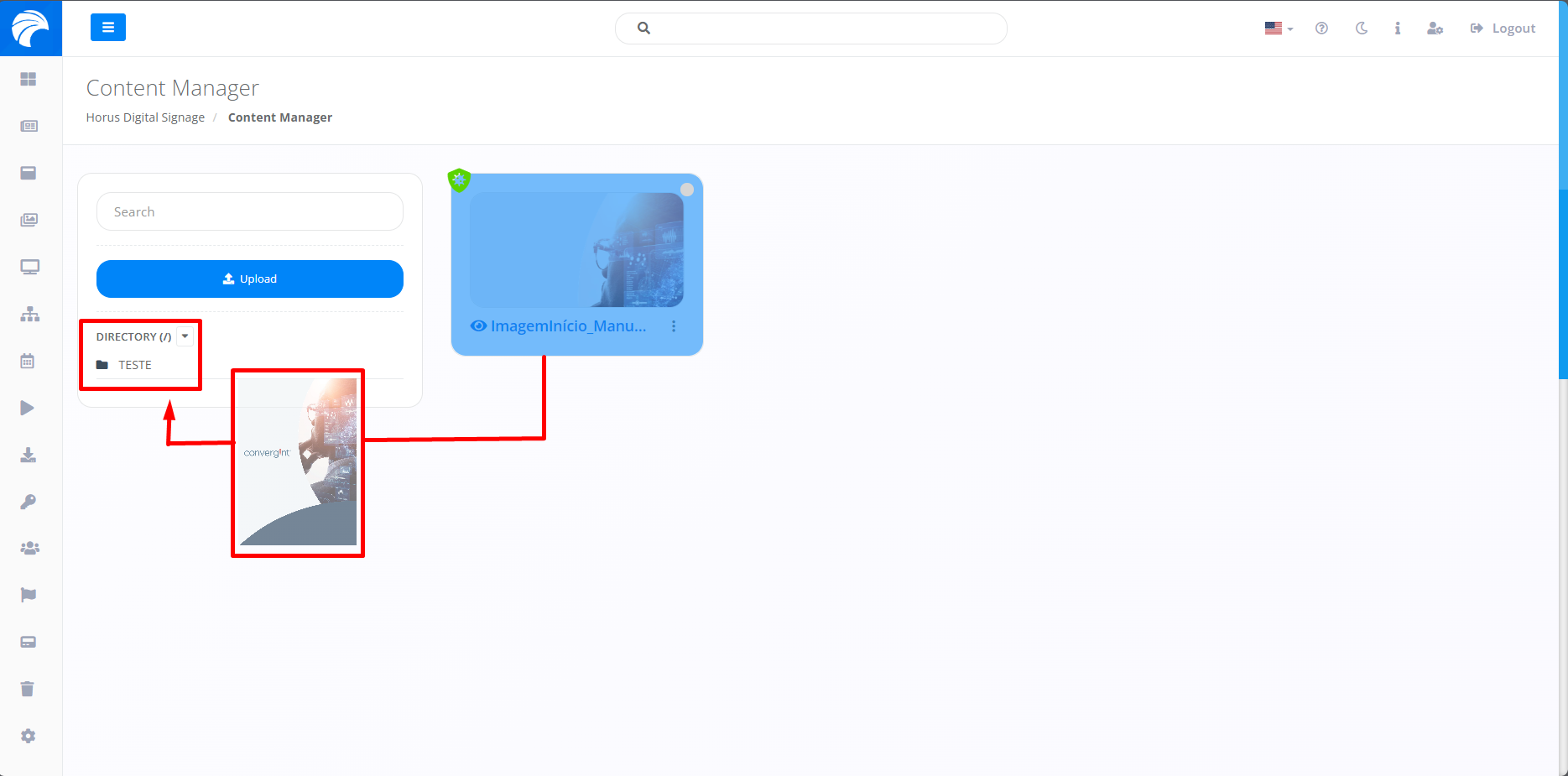
Following the previous step, the directory will be created. To add files to this directory, you will need to drag a file that has already been uploaded to the platform towards the created directory or access the directory and upload the desired file.
Example of transferring a file by dragging the contents:
Example of uploading a file to the directory:
